> ## Documentation Index
> Fetch the complete documentation index at: https://kamino.com/docs/llms.txt
> Use this file to discover all available pages before exploring further.
# How to Open a Multiply Position
> Choose an asset, set your leverage, and open a leveraged position in one transaction.
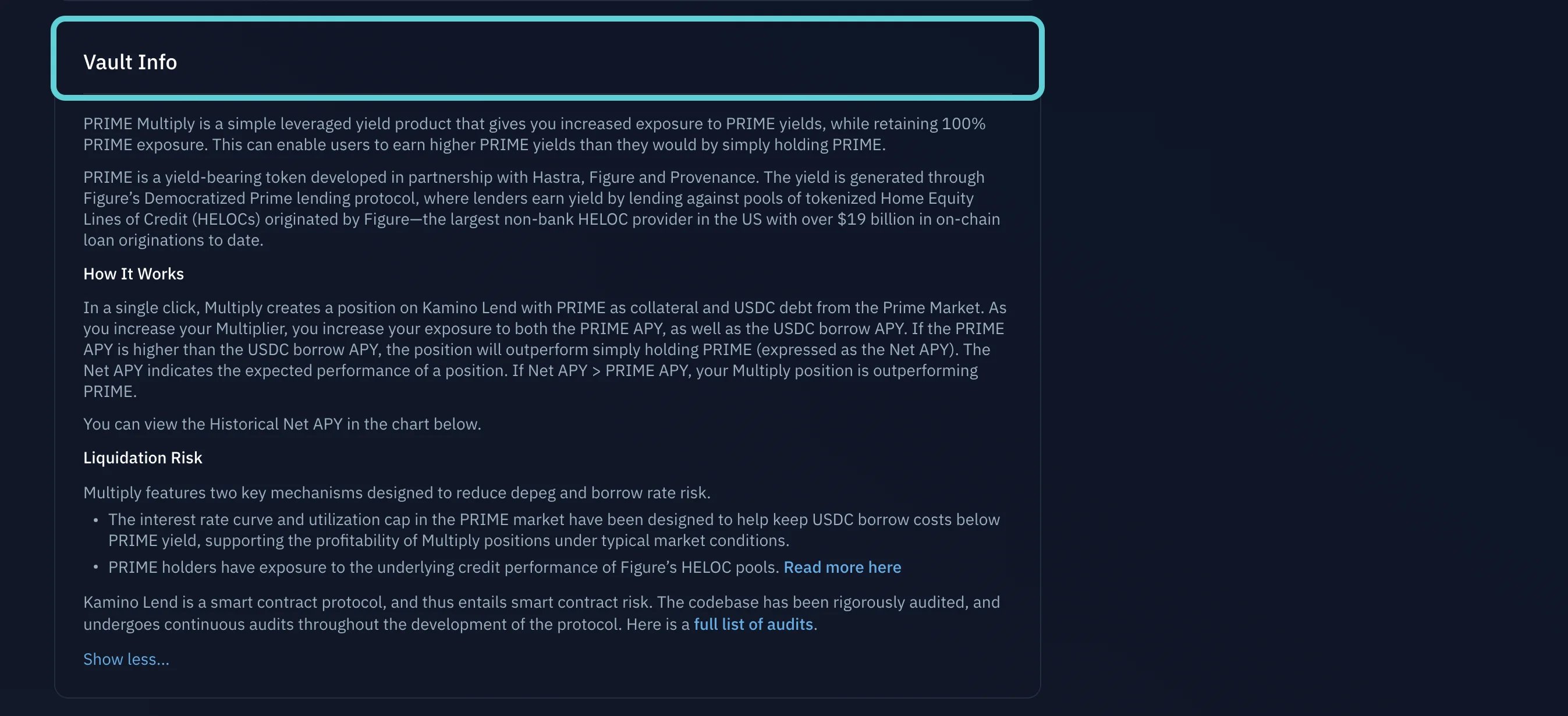
Multiply opens a leveraged position for you in a single transaction. You choose an asset and target leverage, and Kamino handles the borrowing, swapping, and looping behind the scenes.
## Before you start
* Opening a position uses a **flash loan** to build the full leveraged position in one transaction. If any step fails, the whole transaction reverts.
* **Leverage amplifies losses as well as gains**, and every position carries variable-rate debt, so rising borrow costs can eat into or reverse your returns.
* Some correlated pairs use **eMode** for higher leverage, which also narrows the buffer to your liquidation threshold.
## Open step by step
Connect your wallet to Kamino.
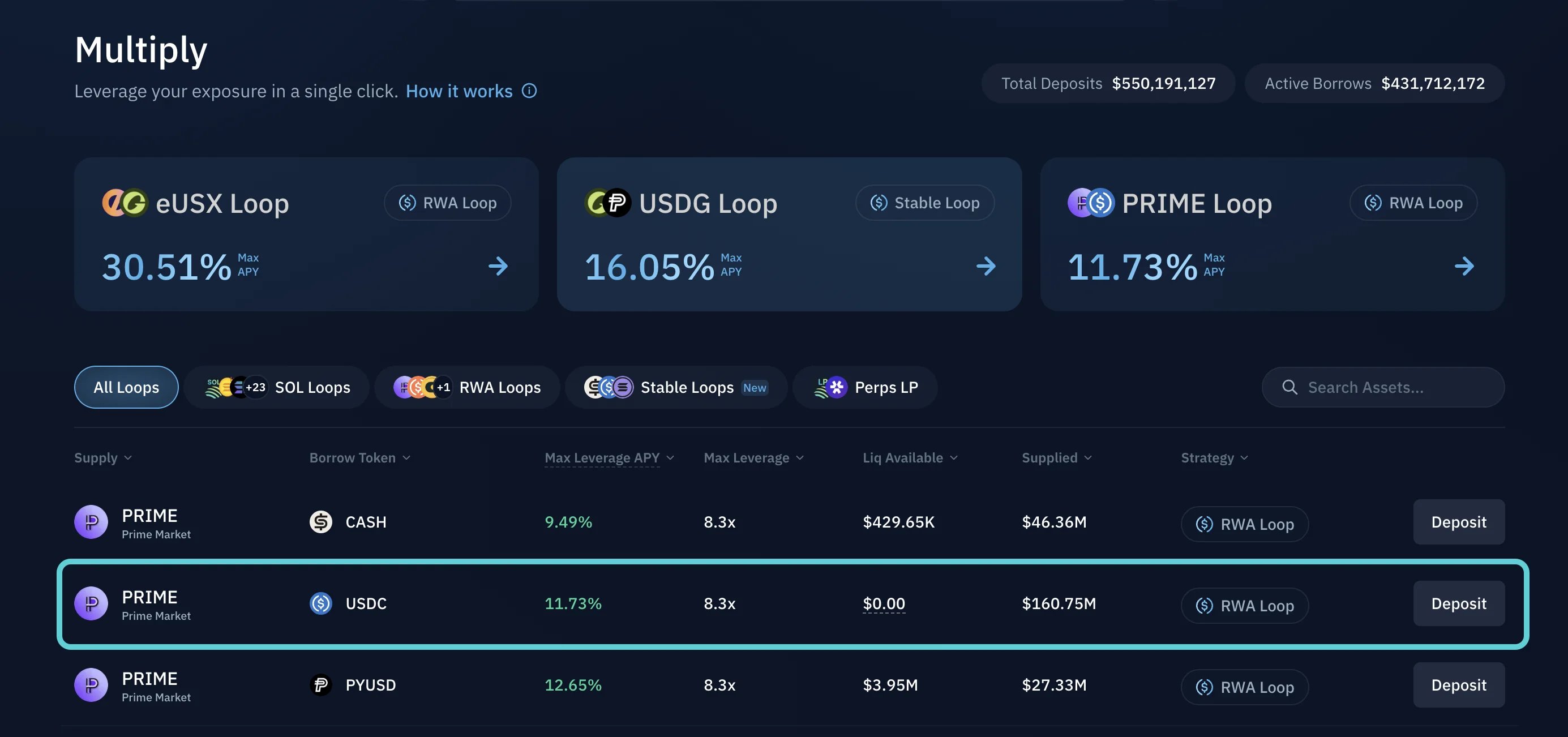
Browse the available Multiply strategies and choose the one that matches the asset and leverage you want.
Review the key details such as the asset pair, available leverage range, current APY, and strategy type.
Enter your deposit amount, select your target leverage multiplier, review the swap pricing and slippage, then click **Deposit** and confirm the transaction in your wallet.
Once confirmed, your leveraged position is active.
Monitor performance and adjust leverage, collateral, or debt.
Understand liquidation risk and how to stay clear of it.